PrintAvera Collection
Premium GoodNotes Templates for iPad
Hyperlinked digital planners that work beautifully on any screen.
There is a particular pleasure in opening a fresh planner on your iPad and finding that everything simply works. You tap the month, and the month appears. You tap a day, and you land exactly where you meant to be, no scrolling, no squinting, no hunting for the right page in a document that stretches on forever. That is the quiet promise of a well-made digital planner, and it is a surprisingly rare thing to find. Plenty of files call themselves planners, but only some are built with the care that makes them a genuine joy to live inside, day after unremarkable day.
A digital planner is, at heart, a set of pages you write on with your Apple Pencil, held together by hyperlinks that let you move between them with a single tap. That word, hyperlinked, is doing a great deal of work. A hyperlinked digital planner behaves less like a static PDF you drag up and down and more like a small, tidy app you have designed for yourself. Tabs run down the side, the year connects to the month, the month connects to the week, and the week connects to the day. You can be anywhere in your whole year in two or three taps, which is precisely how planning should feel.
This guide is about what actually makes a goodnotes digital planner worth keeping, rather than one more file gathering dust in your library. We will look at real hyperlinking versus a PDF you endlessly scroll, how to set a planner up cleanly in GoodNotes, how to carry one calm system across an iPad, a laptop, and even an e-ink tablet, and how to make the paperless switch without losing the tactile, thoughtful feel of writing by hand. Along the way you will meet the templates we make, from a Kindle Scribe Planner to a reMarkable 2 Planner, each built for the device it lives on.
Shop the Collection
GoodNotes Template Printables
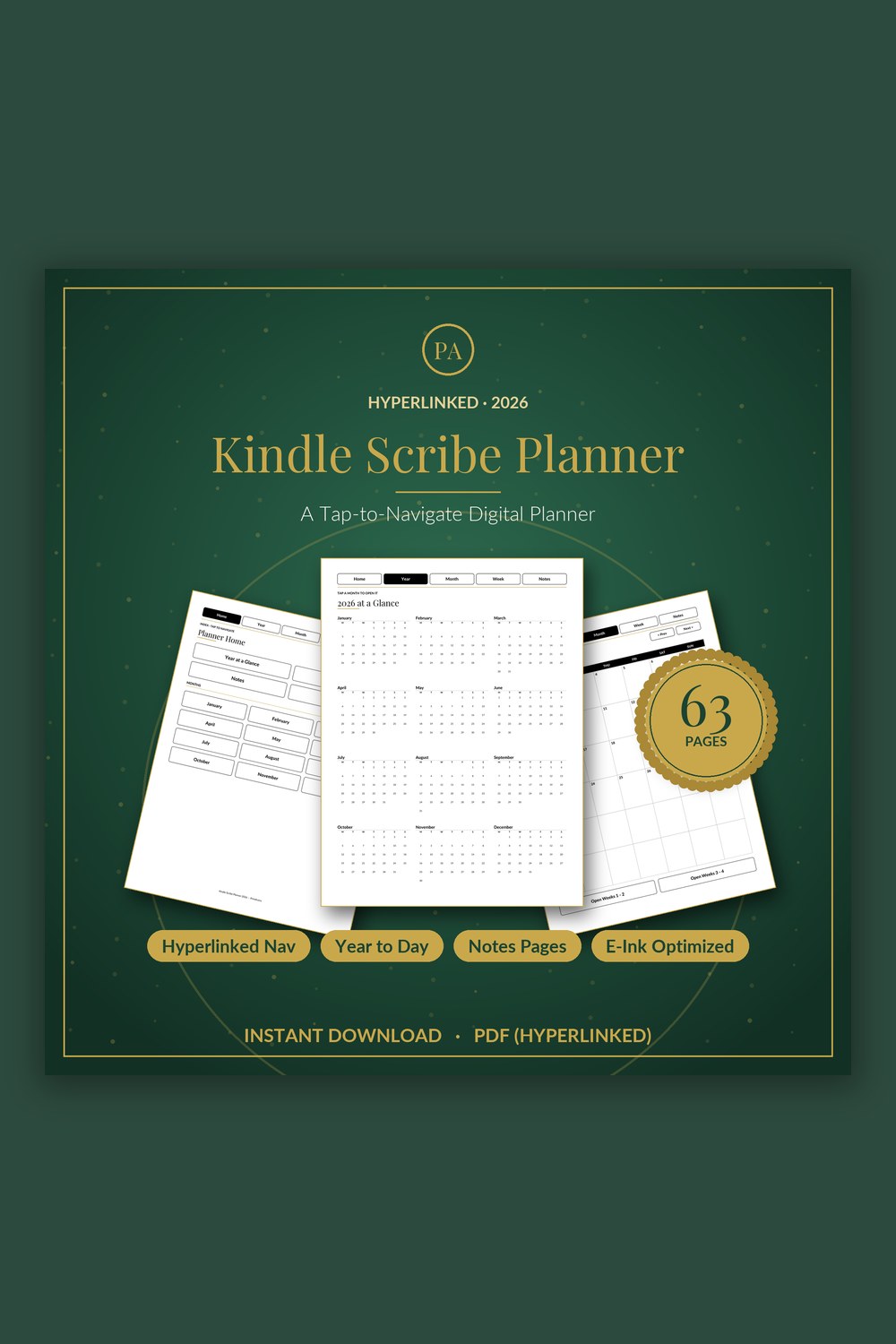
Digital Planner for Kindle Scribe
A fully hyperlinked, e-ink optimized planner built to feel native on your Kindle Scribe
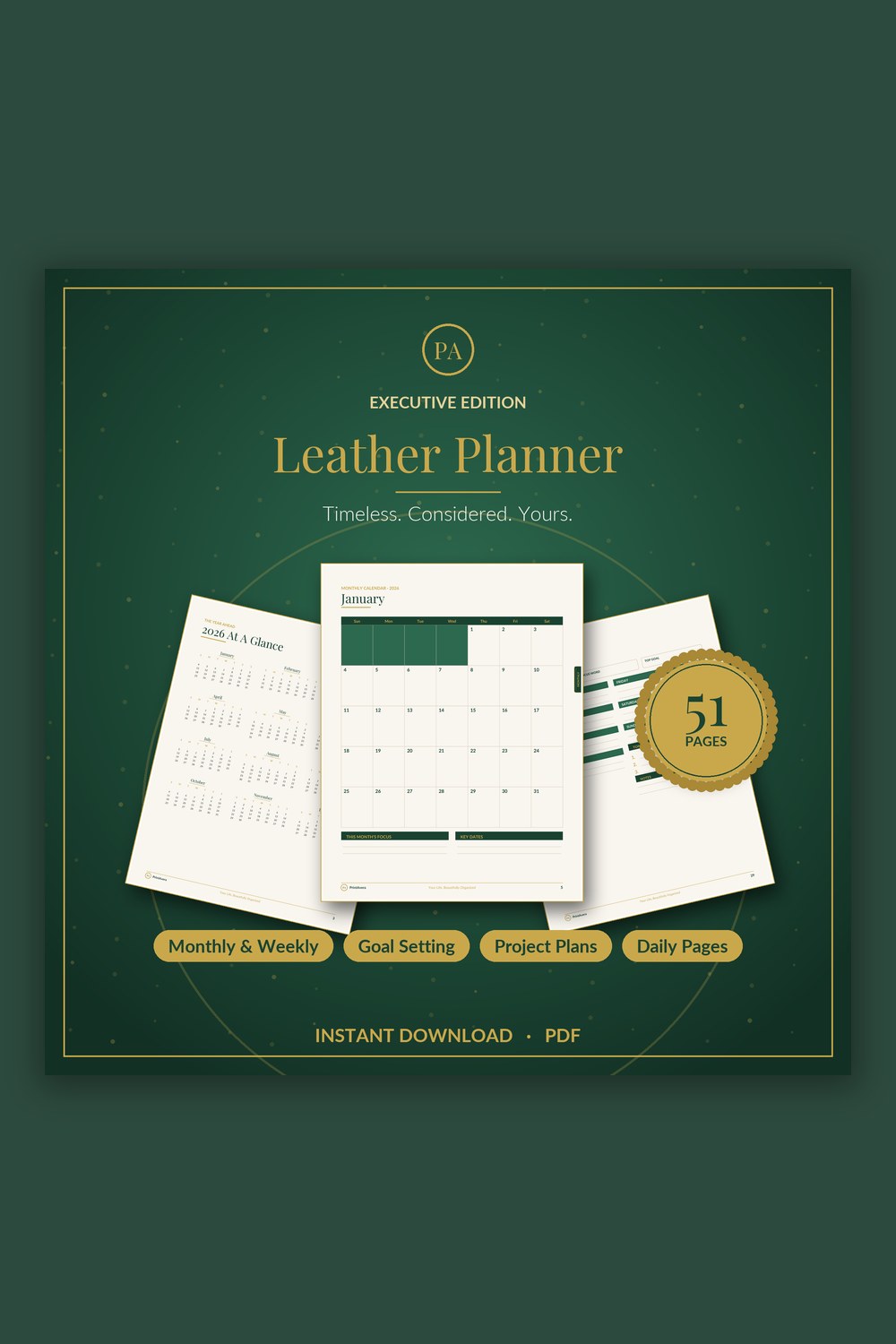
Leather Planner Digital
An executive planner as considered as the work you put into it
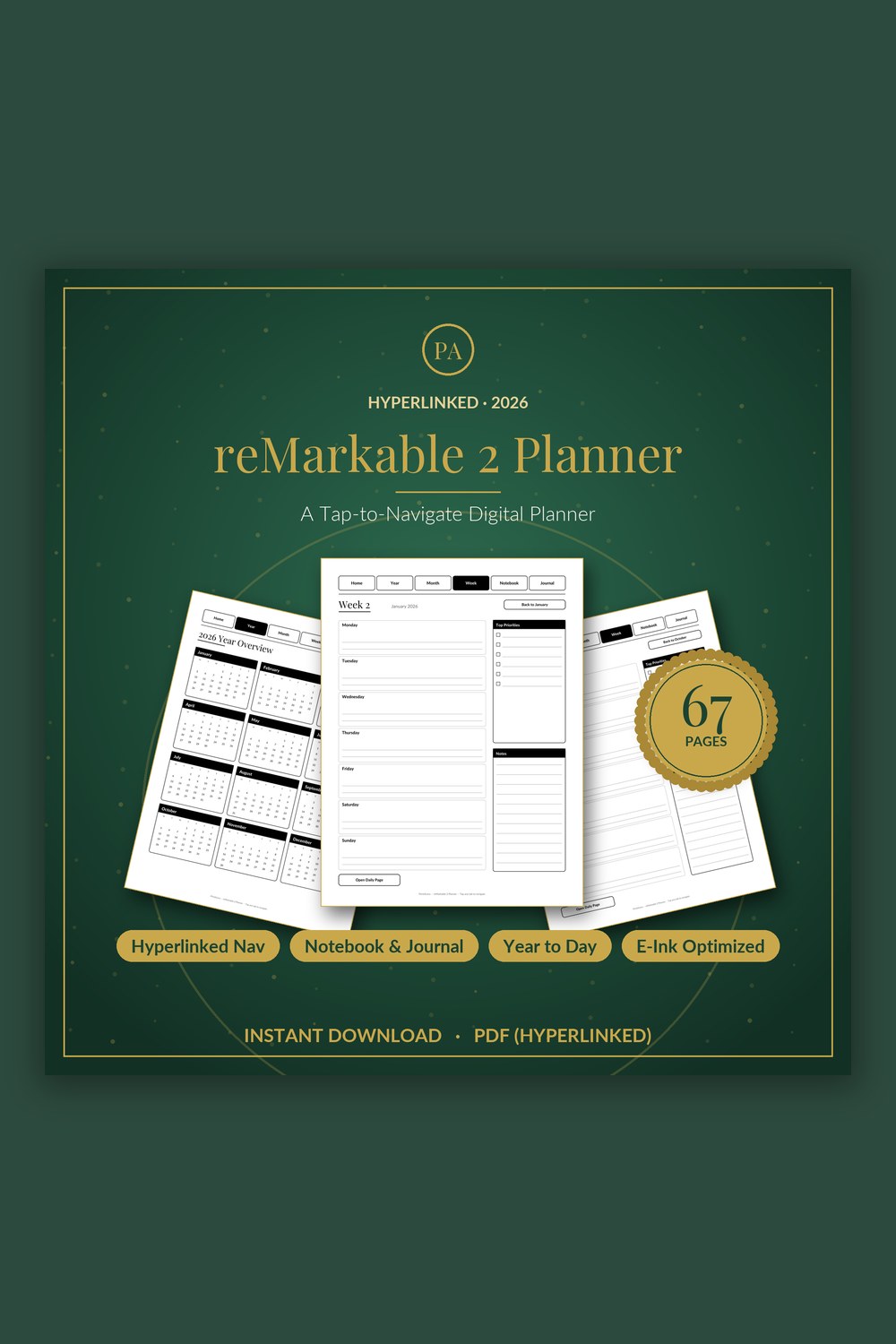
Digital Planner for reMarkable 2
A tap-to-navigate digital planner built for the crisp, distraction-free e-ink screen
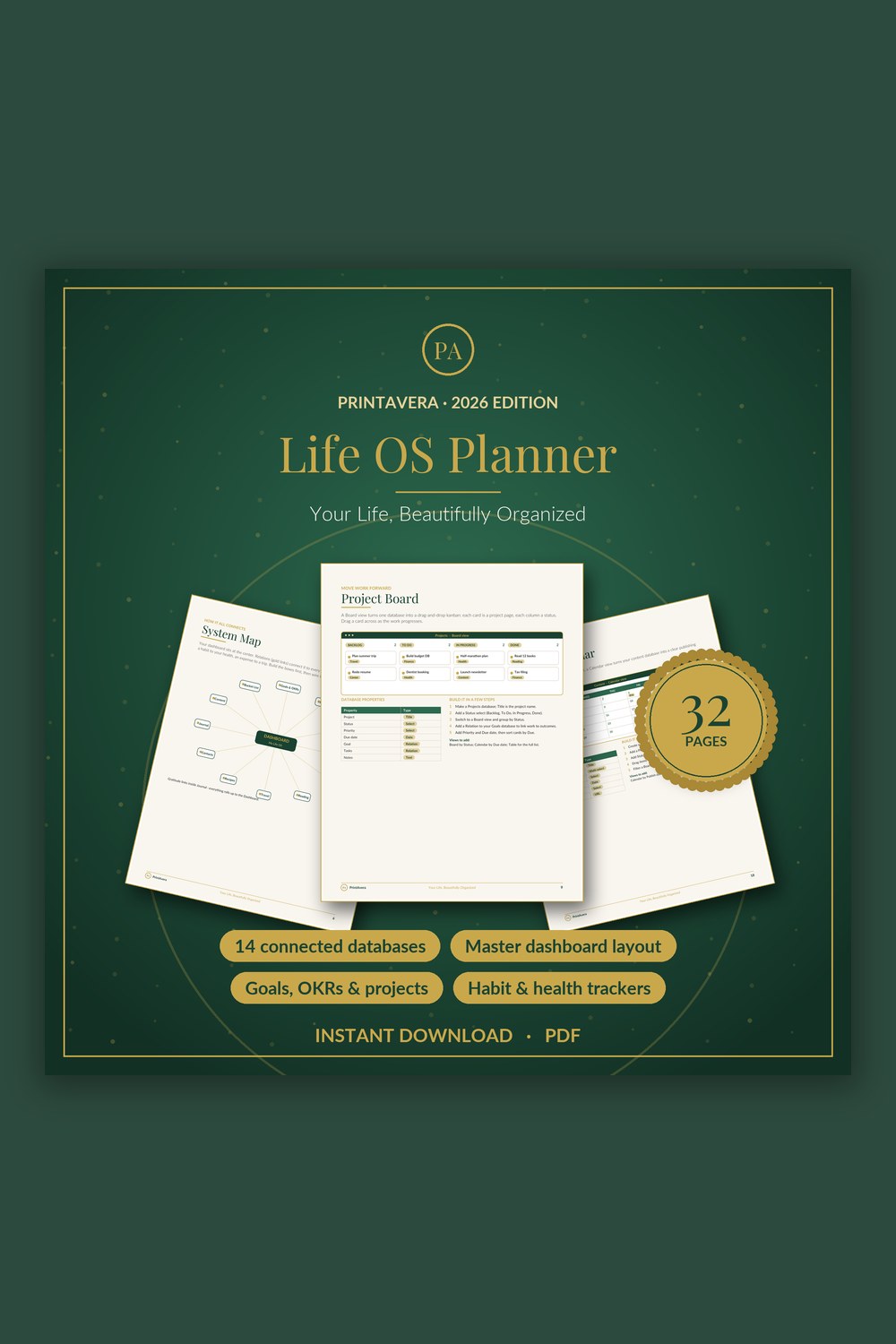
Life Planner Template for Notion
Build your own complete life operating system in Notion – fourteen connected databases and one beautiful dashboard, fully guided from the very first click.
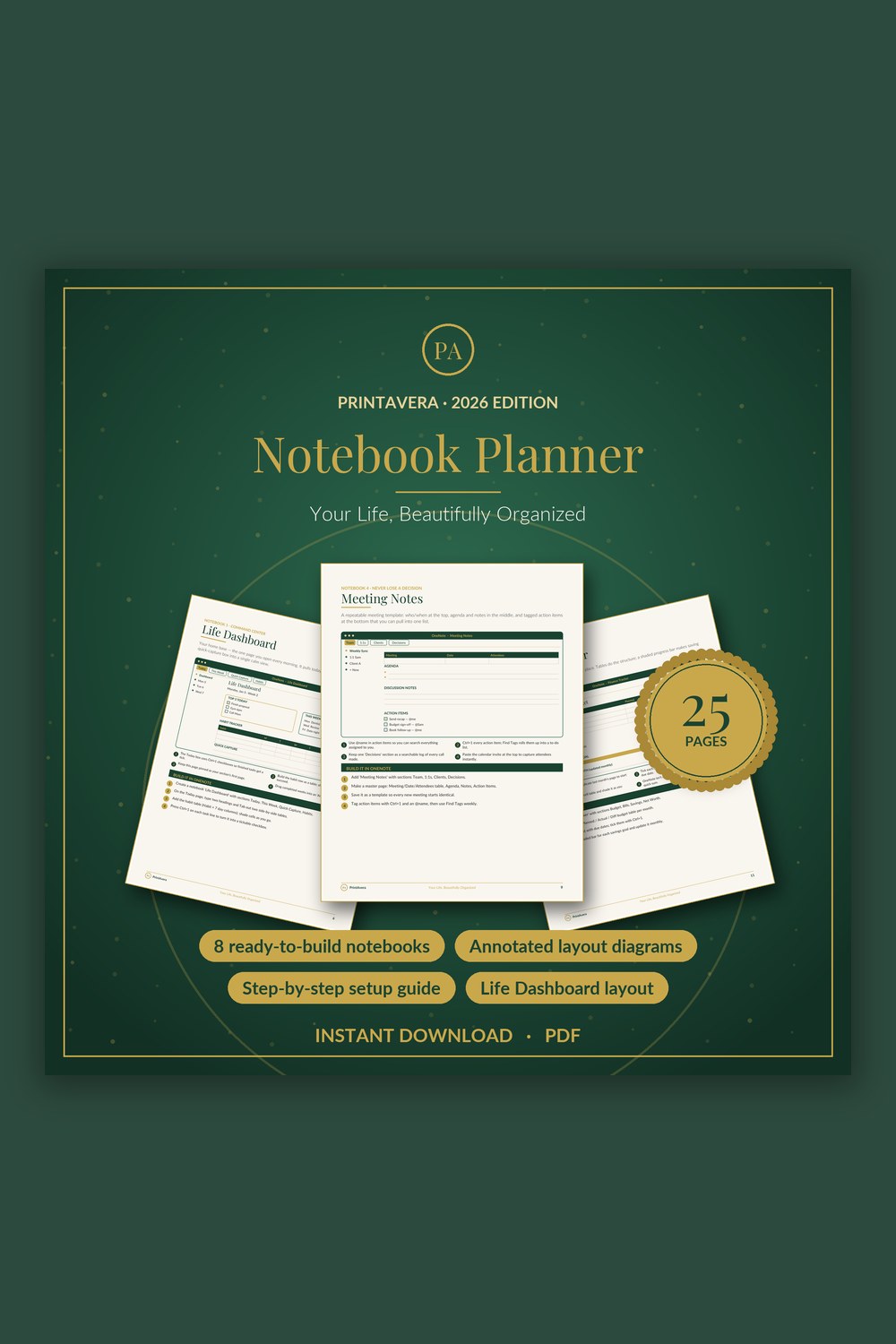
Digital Planner Template for OneNote
Turn the free Microsoft OneNote app into a gorgeous, do-anything digital planner you will actually use.
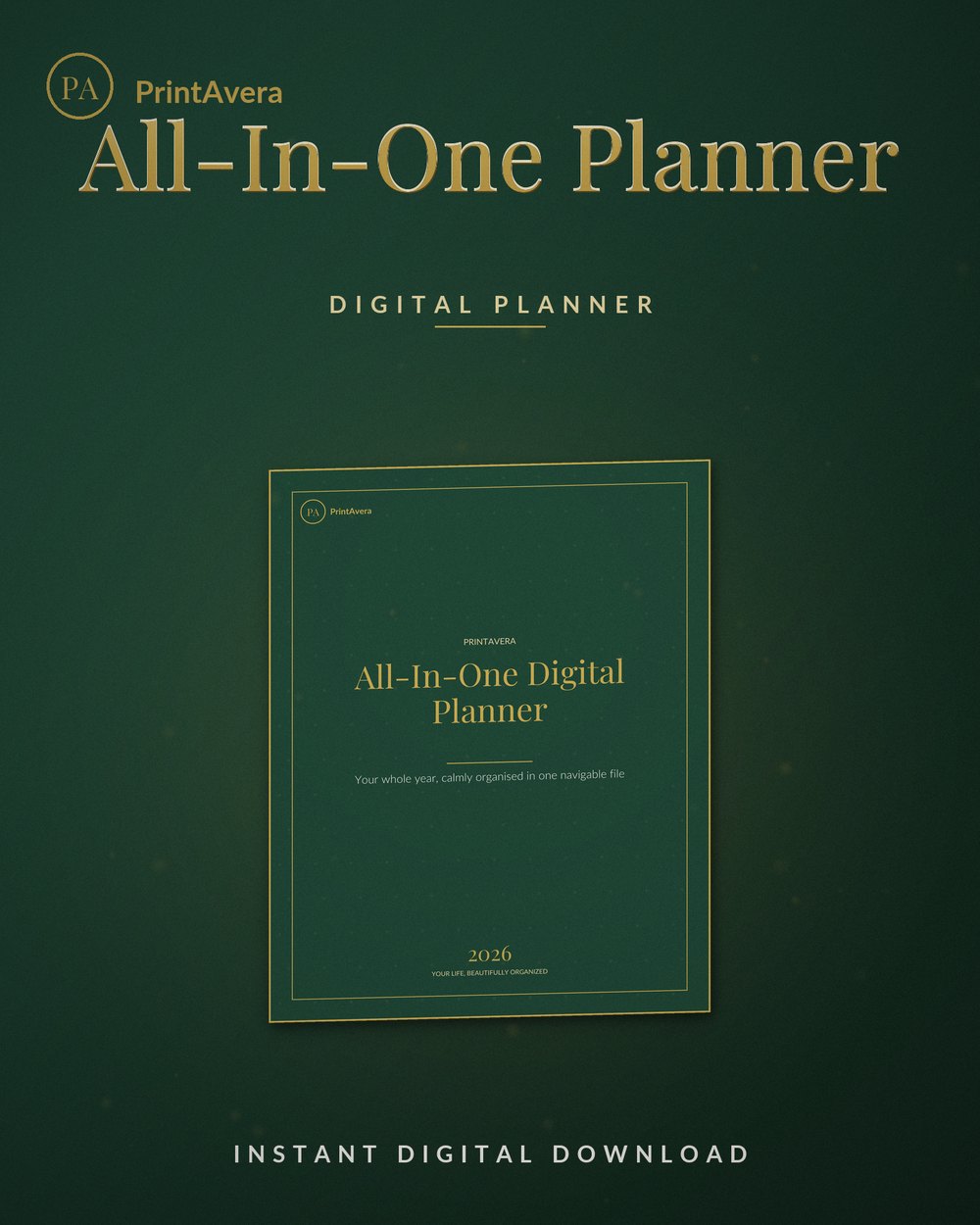
All-In-One Digital Planner
An all-in-one goodnotes digital planner that finally gathers your whole year into one calm, navigable file
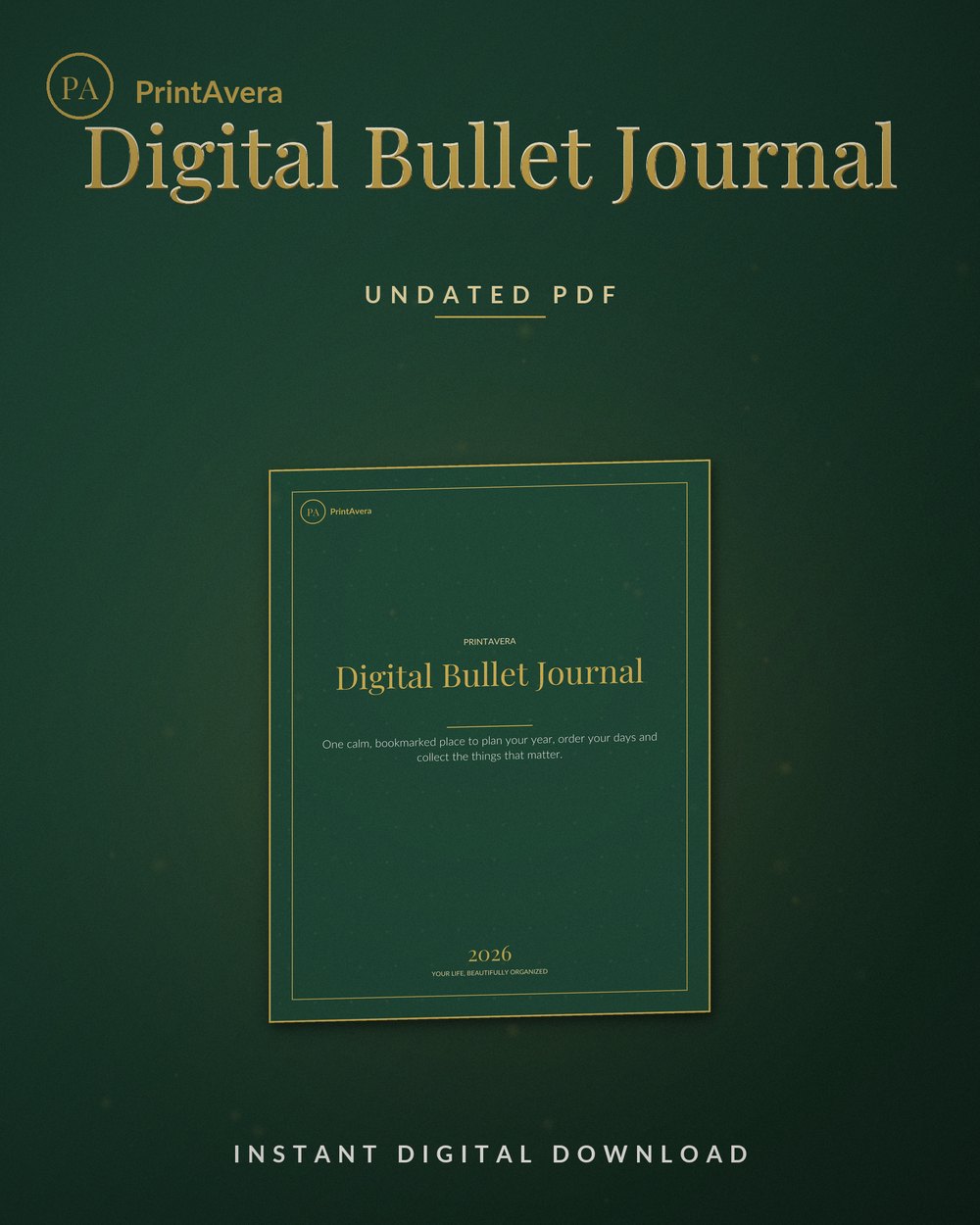
Digital Bullet Journal
A complete digital bullet journal that brings your future log, monthly, weekly and daily spreads and every favourite collection…
The Complete Guide
What makes a digital planner actually good
The difference between a lovely digital planner and a frustrating one almost always comes down to the links. A truly hyperlinked digital planner connects every part of itself, so the monthly calendar points to each week, each week points to its days, and a little home tab carries you back to the top from anywhere. A weaker file might have a few links at the front and then leave you scrolling through hundreds of near-identical pages to find last Thursday. When people say a planner feels effortless, this invisible web of links is usually what they are describing, even if they could not name it.
A great digital planner is not the one that looks best in a screenshot; it is the one you never notice fighting.
The second thing that separates the good from the merely pretty is the size of the tappable targets. On a screen, a link is only useful if you can hit it reliably with a fingertip or the tip of an Apple Pencil, without accidentally landing on the day beside it. Cramped, fiddly tabs make a planner feel like a test of your aim. Generous, well-spaced digital planner tabs make it feel calm. We spend a genuinely unreasonable amount of time on target sizing, because the whole point of digital planning is to remove friction, and a link you keep missing is friction of the most maddening kind.
Everything else is craft that you feel more than you notice. Undated pages, so you can begin in March as happily as in January and never waste a week. A clear, uncluttered layout that leaves room for your own handwriting rather than boxing it in. Sensible tabs that match how you actually think about time. A good digital planner does not shout. It quietly holds the shape of your year and gets out of your way, which is a far harder thing to design than a page that merely looks good in a screenshot.
- Check that every layer links both ways, so the month reaches the week and back again.
- Look for large, well-spaced tappable targets you can hit without aiming carefully.
- Prefer undated pages so you can start any month without wasting a single week.
- Favour a calm, roomy layout that leaves space for your own handwriting.
Why hyperlinked beats a PDF you scroll
Almost anything can be saved as a PDF and called a planner, and this is exactly where a lot of disappointment begins. A plain PDF is a stack of pages with no memory of how they relate to one another. To reach the last week of November you either scroll, and scroll, through everything in between, or you fumble with a thumbnail view and hope you tap the right one. It works, in the way that walking everywhere works, but it quietly taxes you every single time. A hyperlinked digital planner removes that tax entirely by letting the pages know where they lead.
Links are not a luxury; they are what turns a document you visit into a habit you keep.
The gap widens the more you use it. In a scrolling PDF, small daily actions like jumping from today to next month's overview, or from a project page back to your weekly plan, become just enough of a chore that you gradually stop doing them. Planning quietly decays into a page you occasionally visit. With real links, those same jumps take one tap, so you actually keep circling between the big picture and the small next step, which is where planning does its real work. The links are not a luxury feature. They are what turns a document into a habit you can sustain.
This is why we build genuine navigation into every template rather than leaving you to scroll. It is also why devices matter. A Kindle Scribe Planner or a reMarkable 2 Planner has to be laid out with even more care, because e-ink screens refresh slowly and cannot afford lazy design, while an iPad planner in GoodNotes can be a little richer. The medium is different, but the principle never changes: the pages should carry you where you want to go, quietly and instantly, so the tool disappears and only the thinking remains.
- A plain PDF makes you scroll or hunt; a hyperlinked planner takes you there in one tap.
- Frictionless jumps mean you keep planning instead of quietly abandoning it.
- Links matter most for the small daily moves between the big picture and the next step.
- On e-ink devices, thoughtful layout matters even more because the screen refreshes slowly.
Reader Favourite
Digital Planner for Kindle Scribe
A fully hyperlinked, e-ink optimized planner built to feel native on your Kindle Scribe
How to set one up cleanly in GoodNotes
Getting a digital planner for iPad running is far simpler than it looks from the outside, and it takes only a few unhurried minutes. After your download arrives, you save the PDF to your Files app, then import it into GoodNotes as a new document. GoodNotes keeps every link the planner was built with intact, so the moment it opens you can already tap between the year, the month, and the week. There is no fiddly setup, no assembling pages by hand. You are essentially unwrapping a planner that already knows how it fits together.
The planner is the structure; your handwriting is the point.
From there, a couple of small habits make it feel like yours. Set the planner as a favourite so it is always one tap away, and turn on the scrolling direction and background you prefer. If you like the tactile ritual of turning a page, GoodNotes can mimic that; if you would rather glide, it can do that too. Keep your pens simple to begin with, perhaps one for writing and one for highlighting, and resist the urge to collect a hundred colours before you have written a single word. The planner is the structure; your handwriting is the point.
The same file happily lives in other annotation apps, which is worth knowing before you commit. Our planners are compatible with GoodNotes and other annotation tools such as Notability, so you are never locked to one. If your planning lives more in typed notes and databases, that is a different tool for a different job, and something like a Notion Life Planner or an OneNote Planner Template will suit you better than any PDF. Choose the app that matches how your mind already works, rather than bending yourself to fit the software.
- Save the download to Files, then import the PDF into GoodNotes as a new document.
- Set it as a favourite and pick your scrolling direction so it opens the way you like.
- Start with just a writing pen and a highlighter before collecting more colours.
- Remember the file also works in other annotation apps such as Notability.
Carrying one calm system across your devices
Most of us do not live on a single screen, and a planner that only makes sense on one device tends to be quietly forgotten on all the others. The gentler approach is to choose one home for your planning and let everything else point toward it. For many people that home is an iPad planner in GoodNotes, synced through iCloud so the same document greets you whether you pick up the iPad on the sofa or open GoodNotes on a Mac at your desk. Write in one place, and it is simply there in the other, with no copying and no second version to keep in step.
The best system is not the cleverest one; it is the one you will actually open.
Where a second device really earns its place is when it does something the first cannot. An e-ink tablet is the classic example: a reMarkable 2 Planner or a Kindle Scribe Planner gives you a matte, paper-like surface that is kind on the eyes and quiet of the notifications that turn every glance at an iPad into a small negotiation. Because these are separate ecosystems, we lay out a dedicated planner for each device rather than pretending one file fits all. A digital planner for remarkable tablet is a different animal from one made for GoodNotes, and it should be.
If your planning leans toward typing, databases, and links between notes, then a lightweight digital tool may be your real home instead. A Notion Life Planner keeps your projects, tasks, and reference material connected in one searchable space, while an OneNote Planner Template suits anyone already living inside the Microsoft world. There is no single correct setup, only the one you will actually open. Pick the device and app you reach for without thinking, build your planner there, and let the rest quietly support it rather than compete.
- Choose one home for planning and sync it, rather than scattering versions everywhere.
- Let an e-ink tablet earn its place with a paper-like, calm writing surface without notifications.
- Use a planner built for each device instead of forcing one file onto all of them.
- If you plan by typing, a Notion or OneNote setup may suit you better than a PDF.
Find your perfect GoodNotes Template printable
Each design is an instant digital download — buy it, download it, and start today. Print at home or use it on any tablet.
Going paperless without losing the feel
The quiet worry behind going digital is that you will lose something real. Paper has weight, texture, the small satisfaction of a page turned and a box ticked, and it is fair to wonder whether a screen can hold any of that. The honest answer is that it holds most of it, and adds a few things paper never could. Writing with an Apple Pencil on a decent screen protector comes remarkably close to the drag of pen on paper, and the ritual of settling in with your planner survives the move perfectly well. What changes is not the feeling. It is the friction that used to surround it.
For those who love the physical object itself, we understand the pull, which is why we also make a Leather Planner for people who are not quite ready to leave paper behind, and who may never want to. Going paperless is not a purity test, and it does not have to be all or nothing. Many people keep a beautiful paper planner for the year's big shape and use a digital one for the fast-moving daily detail, letting each do what it does best. The goal was never to abolish paper. It was to remove the parts of paper planning that quietly wore you down.
And a digital planner gives back more than it takes. Nothing runs out, so you never reach a page that says the year is over; an undated digital planner simply continues. You can duplicate a page you like, erase without a ghost of pencil left behind, drop in a photo or a shopping list, and search your own handwriting weeks later. You carry your whole year in something lighter than a single notebook. The tactile pleasure of planning does not have to be surrendered. It just moves, intact, onto a surface that finally keeps up with you.
- A good screen protector and Apple Pencil bring the writing feel close to pen on paper.
- Going paperless is not all or nothing; keep paper for the big shape if you love it.
- Consider a Leather Planner alongside a digital one and let each do what it does best.
- Enjoy the extras paper cannot give: duplicate, search, erase cleanly, and never run out.
Frequently Asked Questions
What is a hyperlinked digital planner, and why does it matter?
A hyperlinked digital planner is one whose pages are connected by tappable links, so you can move between the year, month, week, and day with a single tap rather than scrolling. It matters because those links are what make a planner feel effortless to use. Without them, a file is really just a long PDF you drag up and down, and the small daily jumps between your big picture and your next step slowly become a chore you stop bothering with. With real links, planning stays quick and alive. When people describe a planner as intuitive, it is almost always this invisible web of links they are enjoying.
Do these templates work in GoodNotes, and which apps are supported?
Yes, our planners are built to work in GoodNotes and are compatible with other annotation apps such as Notability too, so you are never locked to a single tool. They are PDF files with all the hyperlinks built in, which means you simply import them and the navigation works straight away. If your planning is more about typing and databases than handwriting, a Notion Life Planner or an OneNote Planner Template will suit you better than a PDF, since those live in different apps entirely. We make third-party templates designed for these tools; we are not affiliated with GoodNotes or any app maker, we simply build planners that behave beautifully inside them.
How do I set up a digital planner on my iPad?
It takes only a few minutes. After your download arrives, save the PDF to your Files app, then import it into your annotation app of choice, such as GoodNotes, as a new document. Every link the planner was built with stays intact, so you can tap between the year, month, and week the moment it opens, with no assembly required. From there, set it as a favourite so it is always close, choose your preferred scrolling direction, and keep your pens simple to start. That is genuinely all there is to it. The planner arrives already knowing how it fits together, so you can begin writing the same day you download it.
Do I need an Apple Pencil, or can I use my finger?
You can absolutely tap through the links and type with your finger, but for handwriting an Apple Pencil, or a comparable stylus for your device, makes an enormous difference. Writing by hand is where a digital planner really earns its keep, letting you plan slowly and thoughtfully rather than just typing tasks into boxes. Paired with a decent screen protector, an Apple Pencil comes remarkably close to the feel of pen on paper. If you own an iPad and plan to write rather than type, a pencil is well worth having. Without one, you may find a typed tool like a Notion or OneNote setup fits your hands better.
Are your planners undated, so I can start any time of year?
Many of them are undated by design, which we think is one of the quiet joys of digital planning. An undated digital planner lets you begin in March, or the middle of July, exactly as happily as in January, with no wasted weeks and no sense of having missed the boat. You fill in the dates yourself as you go, so the planner simply continues for as long as you need it, and you are never forced to buy a new one the moment a calendar year ends. It is a gentler, less pressured way to plan, and it means the file you download today is just as useful next year as it is this afternoon.
Can I use the same planner across my iPad, laptop, and e-ink tablet?
Partly, and it is worth understanding where the lines fall. On an iPad and a Mac, the same GoodNotes document can sync through iCloud, so you write in one place and it is simply there in the other. E-ink devices, though, are separate ecosystems, so rather than force one file everywhere we build a dedicated planner for each, such as a Kindle Scribe Planner or a reMarkable 2 Planner. A digital planner for a remarkable tablet is laid out differently from one made for GoodNotes, because the screens behave differently. The gentle rule is to choose one main home for your planning and let the other devices support it rather than duplicate it.
Will I lose the tactile feel of paper if I go digital?
Less than you might fear. Writing with an Apple Pencil on a good screen protector comes close to the drag of pen on paper, and the ritual of sitting down with your planner survives the move perfectly well. What you leave behind is mostly the friction: the running out of pages, the messy erasing, the weight of carrying it all. And you gain things paper never offered, like duplicating a page, searching your own handwriting, and never reaching the end of the year. If you truly love the physical object, going paperless is not all or nothing; some people keep a Leather Planner for the big picture and a digital one for daily detail, letting each do what it does best.
Why PrintAvera?
Every PrintAvera design is created in-house to a five-star standard — considered layouts, calm forest-green and gold styling, and typography chosen to make every page feel intentional. Each one is an instant digital download you can print at home or use on any tablet in minutes. Beautiful enough that you will actually want to use it, every single day.
Explore More Collections