PrintAvera Collection
Go Paperless Without Losing Your Mind
Hyperlinked digital planners optimized for every screen — iPad, Kindle Scribe, reMarkable, Samsung, and more.
Going paperless sounds like a single clean decision, the sort you make once and never revisit. In practice it is a series of small, oddly personal choices, and the first one matters most: which device will actually hold your days. A digital planner for iPad behaves nothing like a planner built for a Kindle Scribe, and neither feels quite the same as one designed for a Samsung tablet or a reMarkable. The good news is that once you match the planner to the screen you already own, the whole thing stops feeling like a chore you are forcing yourself to keep up with and starts feeling like a habit that carries itself.
There is a quiet myth that going digital means becoming a different, more disciplined person overnight. It does not. What it means is that your calendar, your to-do list, your notes and your goals finally live in one hyperlinked place you can reach from the sofa, the train, or the queue at the shops. A good hyperlinked digital planner is not about squeezing more productivity out of yourself. It is about carrying less in your head, remembering fewer things by force of will, and letting a well-made file do the tedious job of keeping everything joined up so you can spend your attention on the parts that actually matter.
This guide is deliberately device-agnostic, because the honest answer to which digital planner you should choose is always another question: what are you planning on. We will walk through iPad and GoodNotes, e-ink tablets like the Kindle Scribe and reMarkable, Samsung and Android, note-first apps like OneNote, and database systems like Notion. Along the way you will meet the tools made for each path, from the Kindle Scribe Planner and the reMarkable 2 Planner to the Notion Life Planner, the OneNote Planner Template and even a Leather Planner for those who want a paper feel without the paper. The aim is one calm setup you keep.
Shop the Collection
Digital Planner Printables
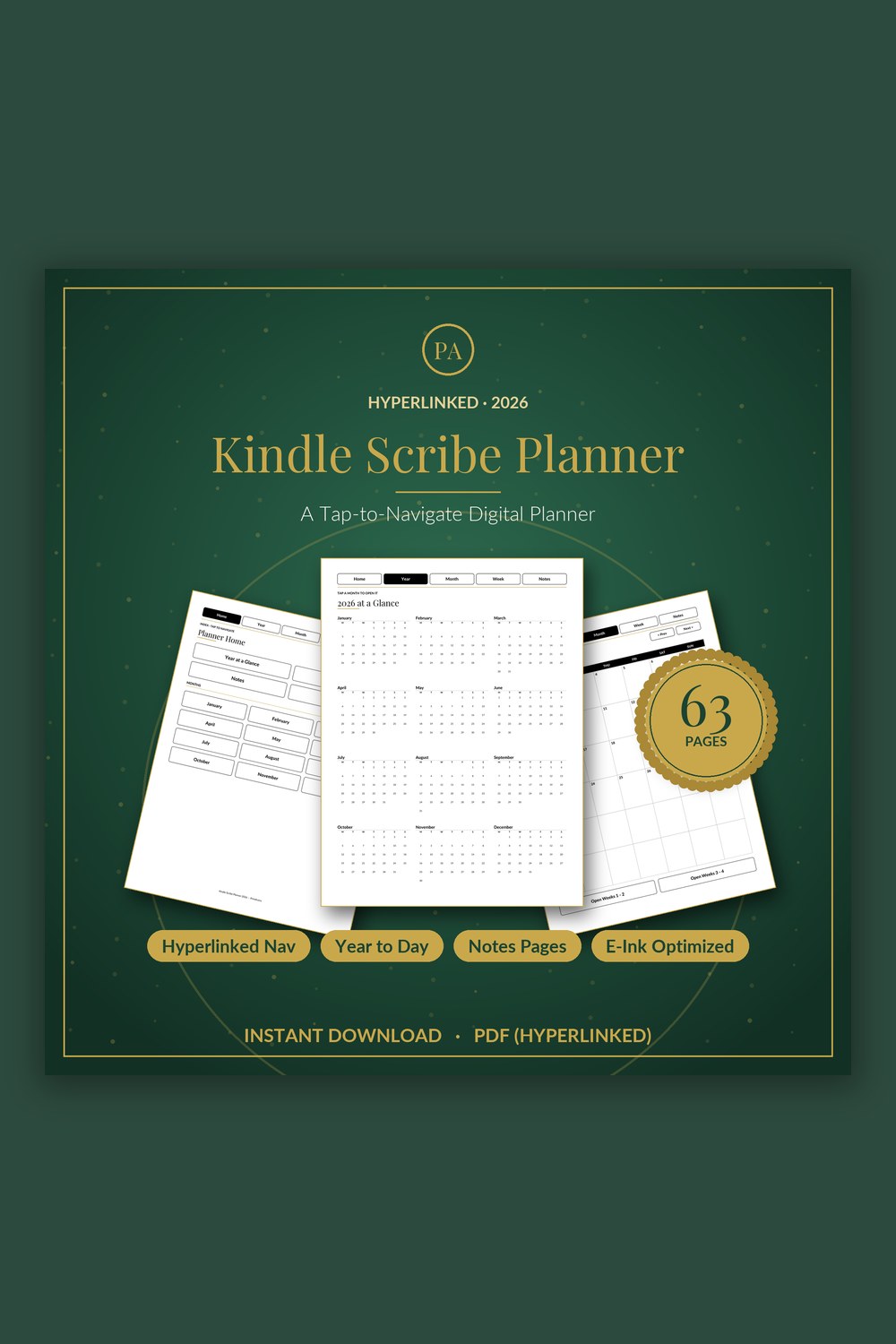
Digital Planner for Kindle Scribe
A fully hyperlinked, e-ink optimized planner built to feel native on your Kindle Scribe
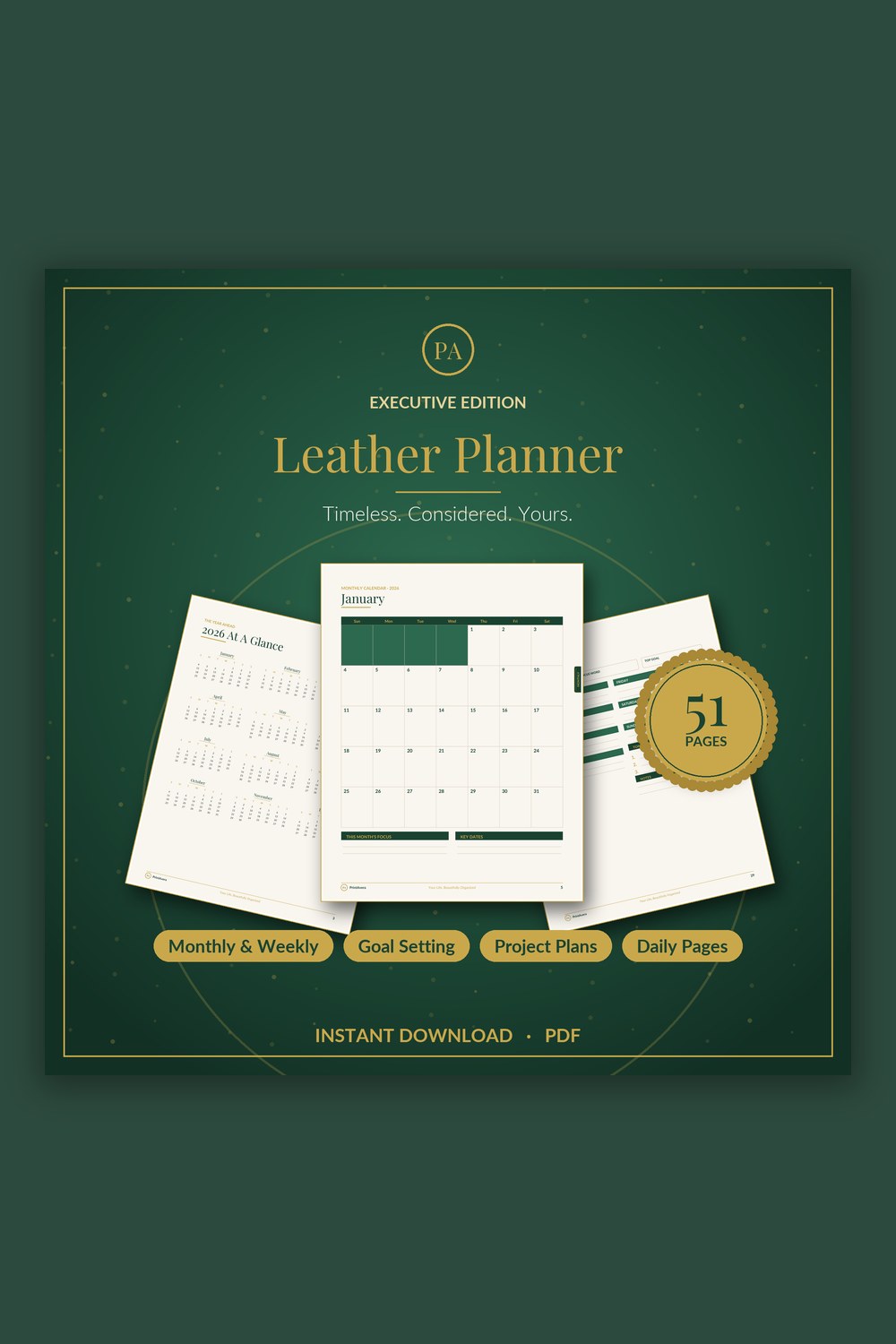
Leather Planner Digital
An executive planner as considered as the work you put into it
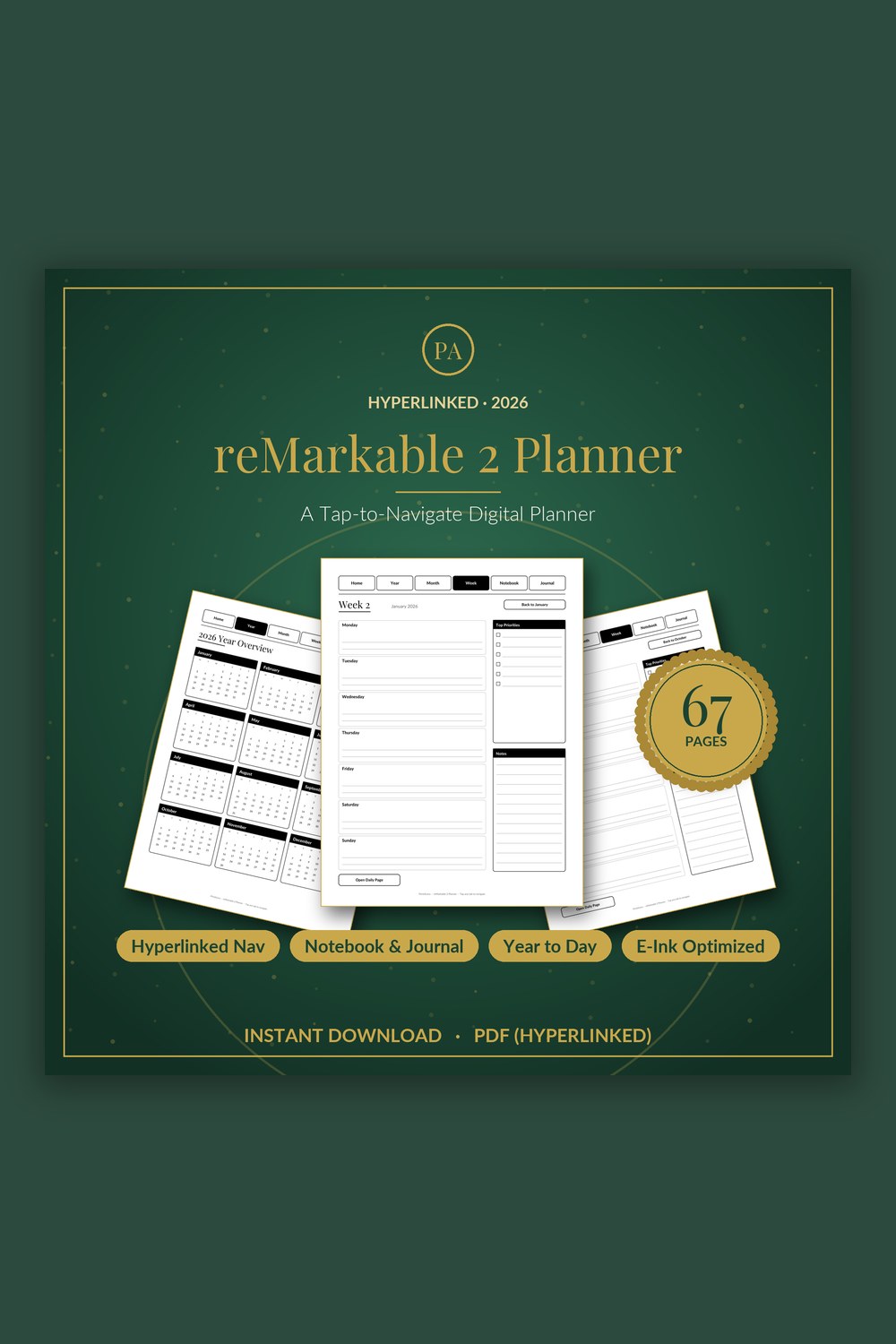
Digital Planner for reMarkable 2
A tap-to-navigate digital planner built for the crisp, distraction-free e-ink screen
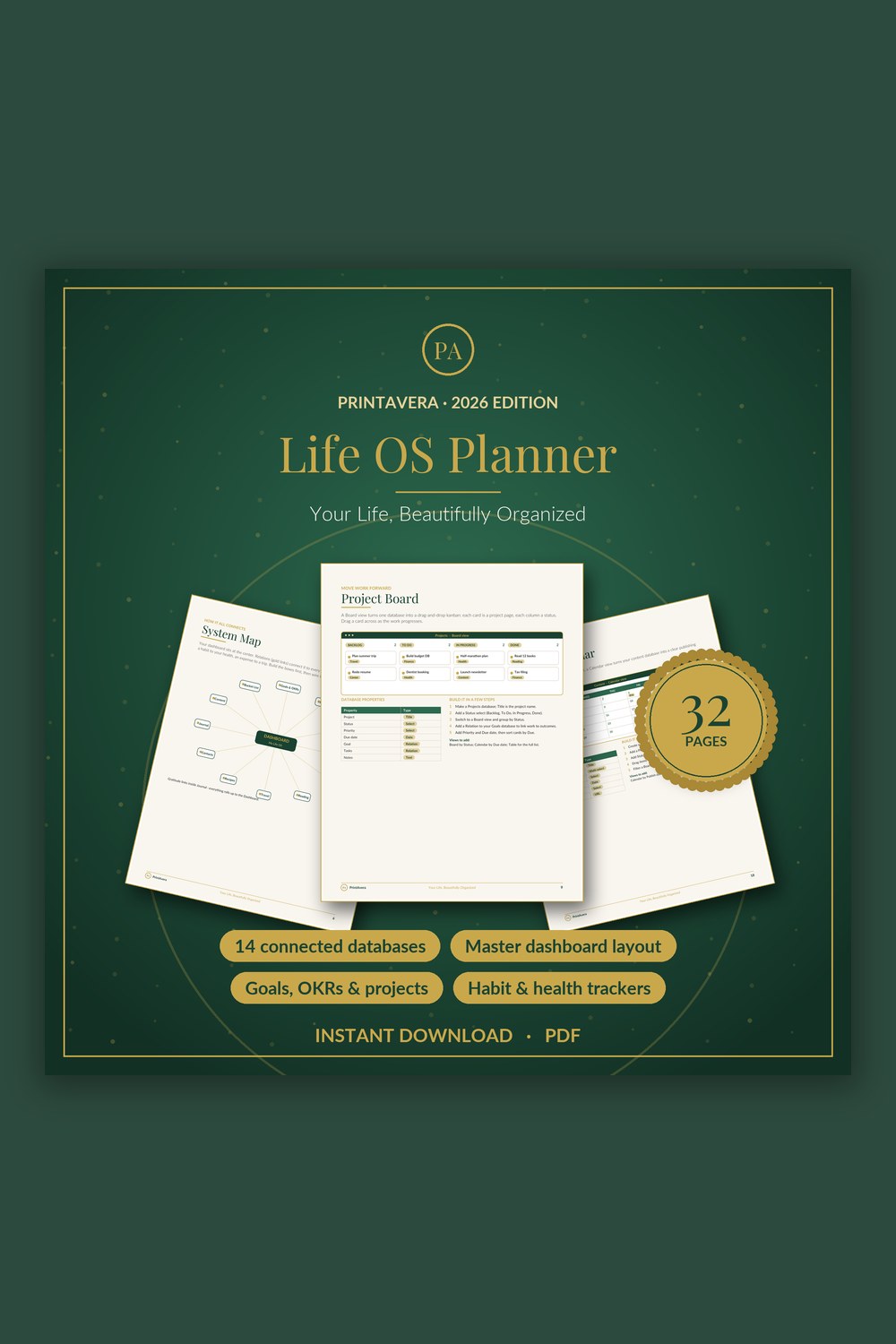
Life Planner Template for Notion
Build your own complete life operating system in Notion – fourteen connected databases and one beautiful dashboard, fully guided from the very first click.
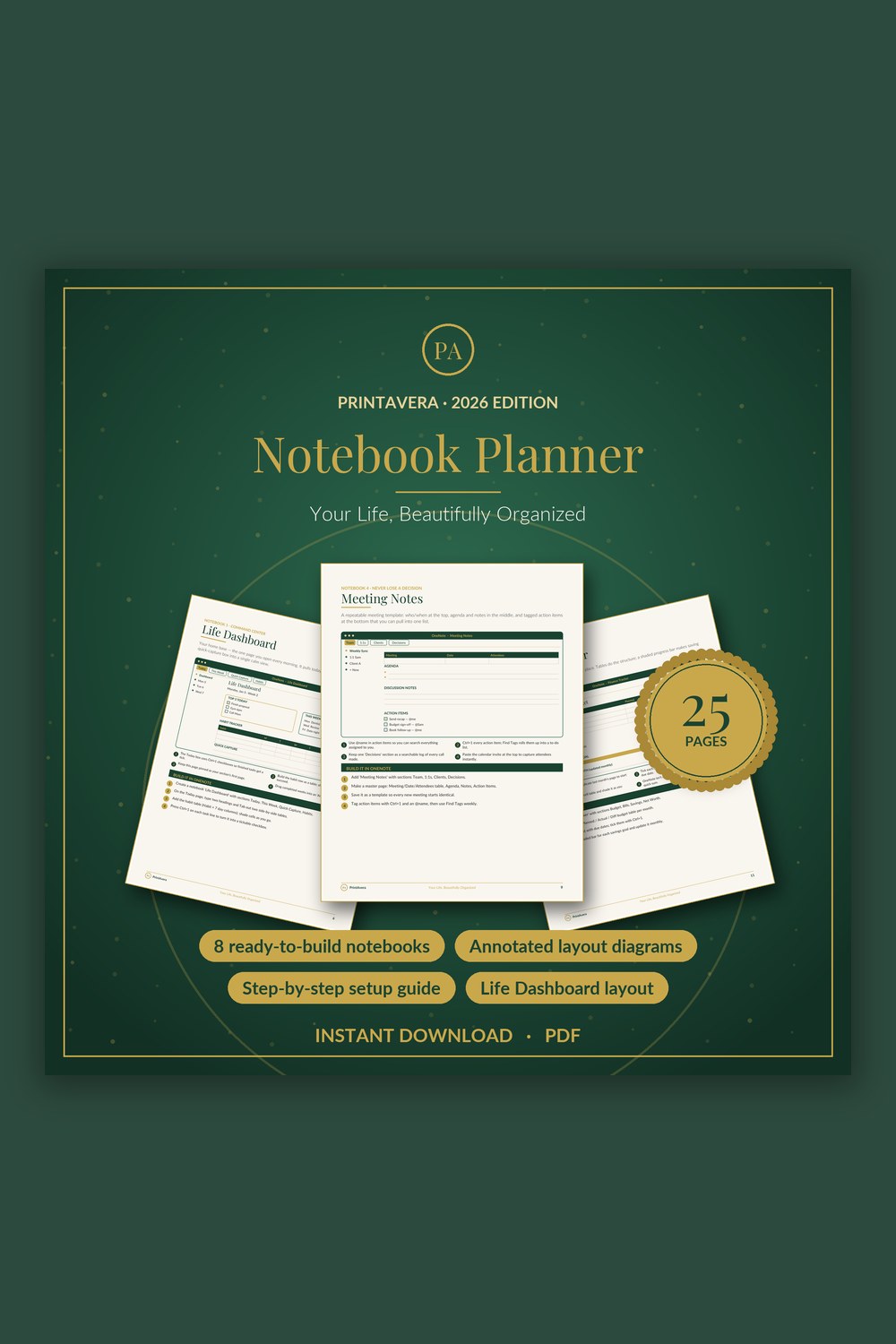
Digital Planner Template for OneNote
Turn the free Microsoft OneNote app into a gorgeous, do-anything digital planner you will actually use.
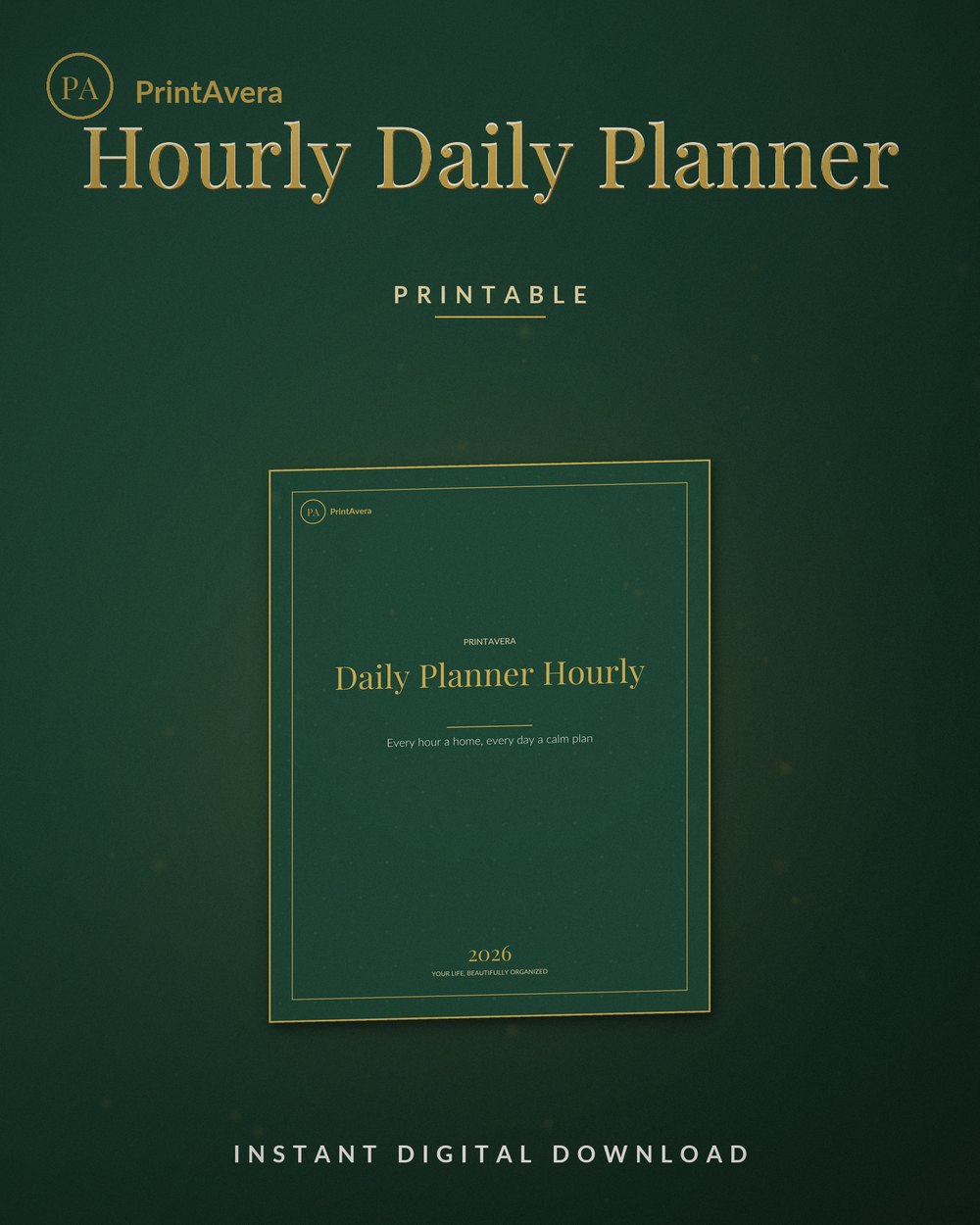
Daily Planner Hourly
A daily hourly planner printable that gives every hour a home, from early morning to evening, with top-three priorities, to-do…
The Complete Guide
Choosing the right digital planner for your device
The single most common reason people abandon digital planning is not laziness or a lack of aesthetic willpower. It is a mismatch. Someone buys a lovely, colour-saturated digital planner made for a glossy iPad, loads it onto a grey e-ink screen, and quietly wonders why it feels wrong. The screen is the starting point, not an afterthought. A glossy tablet like an iPad or a Samsung Galaxy Tab loves colour, decorative digital planner stickers and rich covers. An e-ink device such as the Kindle Scribe or the reMarkable 2 wants high-contrast black on white, clean lines, and layouts that stay crisp without any glare to fight against.
There is no single best digital planner, only the best one for your screen and your habits.
So begin with what is already in your bag. If you own an iPad and write with an Apple Pencil, you are almost certainly heading toward GoodNotes or Notability, and you will want a planner for iPad that is genuinely built for the way those apps handle a hyperlinked PDF. If you own a Kindle Scribe, you want a file sized precisely for its screen so tapping a tab feels native rather than fiddly. If you have a reMarkable, you want a paper-like system with nothing to distract you. And if you live on a Samsung tablet or an Android device, you want a digital planner for Samsung tablet that opens cleanly in the app you actually use, whether that is Noteshelf, Xodo or Samsung Notes.
There is no single best digital planner, only the best one for your screen and your habits. This is precisely why our range spans devices rather than pretending one file suits everyone. The Kindle Scribe Planner is drawn in pure high-contrast tones for e-ink. The reMarkable 2 Planner is sized to that exact screen for stylus writing. The Leather Planner leans into a warm, executive feel for glossy tablets and printing alike. Matching the tool to the device is not fussiness. It is the difference between a planner you open every morning and one that gathers digital dust in a folder you never tap again.
- Glossy tablets (iPad, Samsung Galaxy Tab) suit colour, covers and decorative planner stickers.
- E-ink tablets (Kindle Scribe, reMarkable) suit high-contrast black on white with no glare.
- Match the file size to your exact screen so tapping tabs feels native, not fiddly.
- Pick the planner for the app you already use, rather than switching your whole workflow.
What hyperlinked really buys you
The word hyperlinked gets used so often in planner listings that it has almost stopped meaning anything, which is a shame, because it is the one feature that genuinely changes how the day feels. A hyperlinked digital planner is a PDF where the tabs and dates are live. Tap the month and you land on the month. Tap a date and you drop straight into that day. Tap the little tab bar at the top and you leap to your notes, your year overview, or your goals without a single pinch, scroll or squint. It is the quiet convenience of a well-organised paper binder, minus the tabs falling out and the pages you can never find.
Every step between wanting to check something and seeing it is a chance to give up.
The reason this matters is friction. Any step between wanting to check something and actually seeing it is a chance for you to give up and reach for your phone instead. When your weekly spread is two taps from your monthly calendar, and your monthly is one tap from the year, planning stays inside a single calm loop rather than becoming a scavenger hunt through hundreds of digital planner pages. Every planner in our range is fully hyperlinked for exactly this reason, with a persistent tab bar on every page, so wherever you are, home is always one tap away and you are never lost inside your own file.
Hyperlinking also quietly rewards the paperless promise of never carrying dead weight. A paper planner grows heavier and messier as the year fills up. A hyperlinked digital planner 2026 stays exactly as light in December as it was in January, because navigation is instant no matter how much you have written. You can flick from a note you made in March to next week's plan in the time it takes to think of it, and that speed is what turns a nice-looking file into a system you genuinely rely on rather than merely admire.
- Live tabs and dates mean you tap to jump, never scroll to hunt.
- A persistent tab bar keeps home, year, month, week and notes one tap away.
- Less friction between wanting and seeing means you actually keep it up.
- The file stays fast and light in December, however full the year gets.
Reader Favourite
Digital Planner for Kindle Scribe
A fully hyperlinked, e-ink optimized planner built to feel native on your Kindle Scribe
iPad, Samsung and e-ink, honestly compared
Each device asks something a little different of you, and it is worth being honest about the trade-offs before you commit. The iPad is the crowd favourite for good reason: bright, fast, endlessly flexible, and paired with GoodNotes it turns a digital planner for iPad into something close to magic, with handwriting, colour, imported stickers and search all at once. The catch is that same brightness. A backlit screen invites every other app to interrupt you, and a planner is only as calm as the device it lives on. Notifications are the natural enemy of a paperless plan, so a little discipline with focus modes goes a long way.
A planner is only ever as calm as the device you choose to keep it on.
Samsung and Android tablets have quietly become excellent, and a digital planner for Samsung tablet works beautifully in Noteshelf, Xodo or Samsung Notes, often at a friendlier price than the Apple route. An android digital planner gives you the same hyperlinked freedom, though app behaviour varies more across devices, so it is worth a quick test with your chosen app before you build your whole year around it. Even a Kindle Fire tablet can open a hyperlinked PDF in a capable reader, which makes paperless planning far more accessible than the iPad-only conversation usually suggests.
Then there is e-ink, the quiet contender many people end up loving most. A Kindle Scribe or a reMarkable 2 has no glare, no colour, no rabbit holes, and a battery that lasts for days. Writing on the matte screen feels uncannily like paper, which is the whole point. The Kindle Scribe Planner and the reMarkable 2 Planner are drawn specifically for this world, high-contrast and quietly uncluttered, so if your real goal in going paperless is to think more and be interrupted less, an e-ink digital planner for a reMarkable tablet may suit you far better than the shiniest iPad ever could.
- iPad plus GoodNotes: the most flexible option, but guard against notifications.
- Samsung and Android: capable and affordable; test your app first as behaviour varies.
- E-ink (Kindle Scribe, reMarkable): no glare, no distractions, paper-like writing.
- Choose for how you want to feel while planning, not only for the spec sheet.
Planning by app, from GoodNotes to Notion and OneNote
Beyond the hardware sits the app, and this is where two quite different philosophies emerge. On one side are the write-on-a-page apps like GoodNotes, Notability, Noteshelf and Samsung Notes. They take a hyperlinked PDF and let you scribble, highlight and annotate directly onto it with a stylus, so a digital planner goodnotes setup feels like the closest thing to opening a beautiful paper diary that happens to be weightless. If you love handwriting and want your plan to feel personal and tactile, this is your home, and almost every planner we make drops straight into these apps.
Choose the app that matches how your mind already works, then let the planner follow.
On the other side are the structured, database-style systems, and here Notion and OneNote play very different games. The Notion Life Planner is not a page you write on but a connected set of databases, a genuine life operating system where your goals, habits, projects and finances all talk to one another. It rewards anyone who wants their planner to think and filter and roll up, rather than simply sit there. If you have ever wished your onenote planner or your Notion dashboard could show you today's tasks pulled automatically from three different lists, this structured route is what you are quietly reaching for.
OneNote sits somewhere gentler in between. The OneNote Planner Template turns the OneNote app into a flexible notebook planner that syncs across Windows, Mac, iPad and Android, blending typed notes, checkboxes and handwriting without asking you to learn a database. It is a lovely middle path for people who want more freedom than a fixed PDF but less of a learning curve than a full life OS. Whichever way you lean, the honest rule holds: choose the app that matches how your mind already works, then let the planner shape itself around that, not the other way round.
- Write-on-a-page apps (GoodNotes, Notability, Noteshelf) suit handwriting and annotation.
- Notion suits people who want a connected, filtering, roll-up life operating system.
- OneNote is a flexible middle path: notes, checkboxes and handwriting, synced everywhere.
- Pick the app that fits how your mind works, then let the planner fit the app.
Find your perfect Digital Planner printable
Each design is an instant digital download — buy it, download it, and start today. Print at home or use it on any tablet.
Setting up once and using it across every screen
The secret to paperless planning that actually lasts is to do the setup once, calmly, and then stop fiddling. Import your chosen file into your app, pin it where you will see it, and spend twenty unhurried minutes learning the tab bar until jumping around feels automatic. Add any digital planner stickers or colour you like on a glossy tablet, or keep it clean and high-contrast on e-ink. If you enjoy tinkering, an undated digital planner lets you begin on any date and repeat pages endlessly. If you would rather just start, a dated planner does the thinking for you. Neither is better; they simply suit different temperaments.
Using your planner across screens is where the paperless promise finally pays off. The same hyperlinked file can live on your tablet for writing, on your phone for a quick glance in a queue, and on your laptop for longer planning sessions, all staying in step through your cloud drive. Many people also keep their appointments flowing by learning how to link a digital planner to Google Calendar, so the events they type elsewhere still surface where they plan. The point of digital planning is not to be tied to one device. It is to have your whole life quietly available on whichever screen happens to be in your hand.
None of this requires you to abandon paper entirely, and it is worth saying so plainly. Some people write far better by hand on real paper for certain tasks, and that is completely fine. This is exactly why the Leather Planner exists as a print-and-use option alongside the fully digital files: an executive layout you can run on a tablet or print at home when you want the weight of a page under your pen. Paperless is a spectrum, not a purity test. Set up the version that fits your life this season, and let it change as you do.
- Do the setup once, learn the tab bar, then resist the urge to keep tinkering.
- Undated files start on any date and repeat; dated files remove the decisions.
- Keep the same file on tablet, phone and laptop via your cloud drive.
- Link events to Google Calendar so appointments surface where you plan.
Frequently Asked Questions
Which is better for a digital planner, an iPad or an e-ink tablet?
It depends entirely on how you like to work, not on which is objectively superior. An iPad is bright, fast and endlessly flexible, and with GoodNotes it handles colour, stickers and handwriting beautifully, making it ideal if you enjoy a rich, visual planner. An e-ink tablet like the Kindle Scribe or reMarkable 2 offers no glare, no distractions and a genuinely paper-like writing feel, which suits anyone whose real goal is to focus and be interrupted less. Ask yourself whether you want maximum flexibility or maximum calm. Then choose a planner built for that screen, since a file made for glossy colour will look flat on e-ink, and vice versa.
What does hyperlinked actually mean, and do I really need it?
Hyperlinked means the tabs and dates in the PDF are live, so you tap to jump rather than scrolling to hunt. Tap the month to see the month, tap a date to open that day, and tap the tab bar to reach your notes or year overview instantly. You genuinely notice the difference every single day, because it removes the small friction that quietly makes people give up on planning and reach for their phone instead. A non-hyperlinked file forces you to swipe through hundreds of pages to find anything. A hyperlinked digital planner keeps home always one tap away, which is what turns a nice-looking file into a system you actually keep using.
Will these planners work on a Samsung or Android tablet?
Yes. A hyperlinked digital planner is a standard PDF, so a digital planner for a Samsung tablet or any Android device opens cleanly in apps like Noteshelf, Xodo or Samsung Notes, giving you the same tap-to-navigate freedom people enjoy on an iPad. An android digital planner often costs less to set up, too, since capable tablets come at friendlier prices. App behaviour can vary a little across devices, so it is worth opening a sample in your chosen app first to confirm handwriting and links behave as you expect. Even a Kindle Fire tablet can open these files in a decent PDF reader, which makes paperless planning far more accessible than the iPad-only conversation usually implies.
What is the difference between a GoodNotes planner and a Notion or OneNote one?
They represent two different philosophies. A digital planner for GoodNotes, Notability or Noteshelf is a fixed hyperlinked PDF you write directly onto with a stylus, so it feels like a beautiful paper diary that happens to be weightless, perfect if you love handwriting. The Notion Life Planner is completely different: a connected set of databases, a true life operating system where goals, habits, projects and finances talk to each other and roll up automatically. The OneNote Planner Template sits gently between the two, turning the OneNote app into a flexible synced notebook without the learning curve of a full database. Choose the one that matches how your mind already likes to organise things.
Should I choose a dated or an undated digital planner?
Both have real merits, and it comes down to temperament. A dated planner has the calendar already filled in, so you simply open today and begin, with no setup decisions to make. An undated digital planner lets you start on any date, pause and resume without wasted pages, and reuse the same layouts year after year, which appeals to people who like flexibility or who plan in irregular bursts. If you value momentum and want the file to do the thinking, go dated. If you value control and reuse, go undated. Our range includes both, and neither is more serious than the other; they simply suit different ways of moving through the year.
Can I use the same planner across my phone, tablet and laptop?
Yes, and this is where paperless planning really earns its place. Because your planner is a single file, you can keep it in a cloud drive and open the very same copy on your tablet for writing, your phone for a quick glance while you are out, and your laptop for longer sessions, all staying in step. Structured systems like the Notion Life Planner and the OneNote Planner Template sync across devices automatically. Many people also learn how to link a digital planner to Google Calendar so appointments surface alongside their plans. The whole point of digital planning is to have your life available on whichever screen is nearest, rather than tied to any one device.
How are these digital planners delivered, and is going paperless worth the learning curve?
Every planner is an instant digital download, so after checkout you receive your file straight away with nothing to ship, and you keep it to reuse across future years. On the honest question of the learning curve, there genuinely is one, though it is smaller than people fear. Expect an unhurried first evening learning the tab bar and your chosen app, after which most of it becomes automatic. The pay-off is real: everything joined up in one light, searchable, always-with-you place, far less paper to store or waste, and a system that stays as fast in December as in January. If you like handwriting but want to go digital, it is well worth the short climb.
Why PrintAvera?
Every PrintAvera design is created in-house to a five-star standard — considered layouts, calm forest-green and gold styling, and typography chosen to make every page feel intentional. Each one is an instant digital download you can print at home or use on any tablet in minutes. Beautiful enough that you will actually want to use it, every single day.
Explore More Collections